

As a supplier of 5.5KW Variable Frequency Drives (VFDs), I understand the importance of keeping your equipment up - to - date with the latest firmware. Firmware upgrades can enhance performance, improve reliability, and add new features to your VFD. In this blog post, I will guide you through the process of upgrading the firmware of a 5.5KW VFD.
Why Upgrade the Firmware?
Before diving into the upgrade process, it's crucial to understand why you should consider upgrading your VFD's firmware. Firstly, firmware updates often include bug fixes. Over time, manufacturers identify and rectify issues that may cause malfunctions or instability in the VFD. By upgrading, you can ensure that your drive operates smoothly without unexpected glitches.
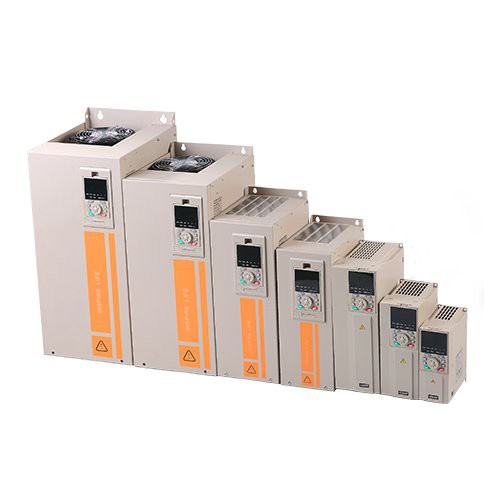

Secondly, new features are frequently added in firmware updates. These can range from improved energy - saving algorithms to enhanced communication protocols. For example, a new communication protocol can allow your VFD to integrate more seamlessly with other industrial control systems, providing better overall system performance.
Lastly, security is a significant concern in today's industrial environment. Firmware upgrades can patch security vulnerabilities, protecting your VFD from potential cyber - attacks.
Prerequisites for Firmware Upgrade
- Check Compatibility: Before attempting an upgrade, make sure the new firmware is compatible with your specific 5.5KW VFD model. You can usually find this information on the manufacturer's website or in the product documentation. Using incompatible firmware can damage your drive and void the warranty.
- Backup Existing Settings: It's essential to back up all your VFD's existing settings. These settings control how the VFD operates, such as speed, torque, and acceleration/deceleration times. You can use the VFD's built - in backup function or a programming software provided by the manufacturer.
- Gather Necessary Tools: You will need a programming cable that is compatible with your VFD. This cable allows you to connect the VFD to a computer. Additionally, download the latest firmware from the manufacturer's official website. Make sure you have a stable internet connection during the download process to avoid corrupted files.
Step - by - Step Firmware Upgrade Process
- Power Off the VFD: For safety reasons, turn off the power supply to the VFD. This prevents any electrical hazards during the upgrade process.
- Connect the VFD to the Computer: Use the programming cable to connect the VFD to your computer. Ensure that the connection is secure to avoid data transfer errors.
- Open the Programming Software: Launch the programming software provided by the VFD manufacturer. This software is designed to communicate with the VFD and facilitate the firmware upgrade.
- Verify the Connection: In the programming software, check if the VFD is detected correctly. If the VFD is not detected, double - check the cable connection and the settings in the software.
- Load the Backup Settings: If you have backed up your settings, load them into the programming software. This ensures that your VFD will continue to operate with the same settings after the upgrade.
- Select the New Firmware: In the programming software, navigate to the option for firmware upgrade. Select the downloaded firmware file.
- Initiate the Upgrade: Once you have selected the firmware file, start the upgrade process. The software will transfer the new firmware to the VFD. This process may take several minutes, depending on the size of the firmware file and the speed of your connection.
- Monitor the Upgrade Progress: Keep an eye on the progress bar in the programming software. Do not interrupt the upgrade process, as this can lead to a corrupted firmware installation.
- Complete the Upgrade: After the upgrade is finished, the software will usually display a confirmation message. Disconnect the programming cable from the VFD.
- Power On the VFD: Turn on the power supply to the VFD. The VFD will boot up with the new firmware. Check if all the settings are still intact and if the VFD is operating normally.
Troubleshooting
- Upgrade Failed: If the upgrade fails, check the following:
- Connection Issues: Ensure that the programming cable is properly connected and that there are no loose connections.
- Firmware File Corruption: Download the firmware file again to make sure it is not corrupted.
- Power Interruptions: Check if there were any power interruptions during the upgrade process. If so, try the upgrade again after ensuring a stable power supply.
- VFD Not Functioning Properly: If the VFD is not functioning correctly after the upgrade, check if the settings were loaded correctly. You may need to re - enter some of the settings manually. If the problem persists, contact the VFD manufacturer's technical support.
Related VFD Products
If you are interested in other VFD products, we also offer a range of Frequency Drive Controller that can meet different industrial needs. Our Normal Duty and Heavy Duty VFD are designed to provide reliable performance in various working conditions. And for smaller applications, our 1.5KW VFD is a cost - effective solution.
Conclusion
Upgrading the firmware of a 5.5KW VFD is a relatively straightforward process if you follow the proper steps. By keeping your VFD's firmware up - to - date, you can ensure optimal performance, reliability, and security. If you have any questions about the firmware upgrade process or are interested in purchasing our 5.5KW VFDs or other related products, please feel free to contact us for further discussion and procurement negotiation.
References
- Manufacturer's VFD product documentation
- Technical support resources provided by the VFD manufacturer